useState
So far, your React components have been static: they display content but there is no way to make them change! State is what makes them interactive: when state changes, React automatically updates the UI.
This lesson dives into this state concept, a crucial foundation we will use to create interactive graphs and dashboards later in the course!
The problem
The previous lessons explained how to write a basic React component, how to compose them together, and how to use props to configure them.
But how do we make the application react to user actions?
Let's say a user clicks a button and expects a component to go from blue to red. How do we do this?
We saw how to do it in Module A using vanilla JavaScript. We also described the limits of that approach. Now it's time to use React state to solve the problem.
The solution: state
1️⃣ Set up a state
A state is a variable that React keeps track of. It can be anything: a number, a string, an object, an array.
There is only one way to create this state: the useState function, used like this:
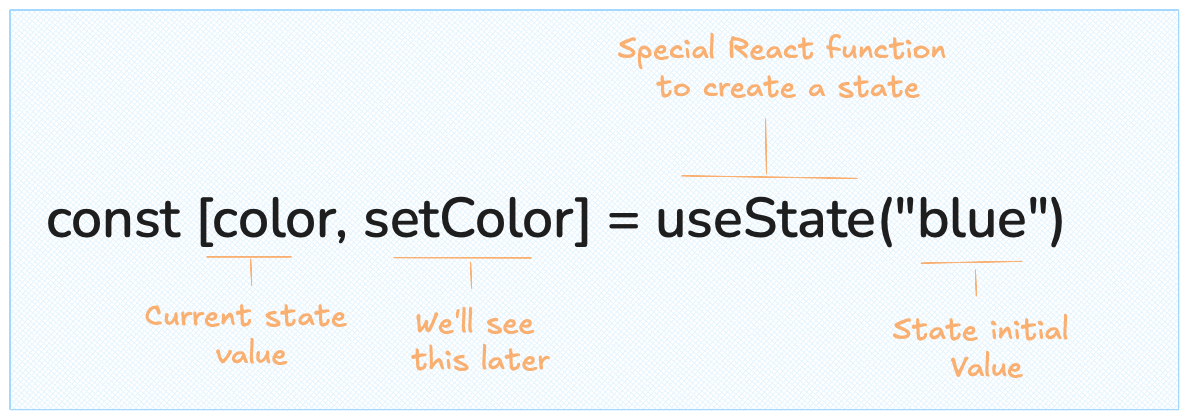
useState is a function that is provided by the React library. It takes one argument: the initial value for your state.
It returns two things: the state variable (color here) and a setter function (setColor). Let's use them below.
2️⃣ Use the state
The state color is just a variable. You can use it anywhere in your component: console.log() it, pass it to a style, display it in the JSX — whatever you need.
Here is an example where the state is used to control the background color of a rectangle:
import { useState } from "react";

export default function App() {
  const [color, setColor] = useState("dodgerblue");

  console.log("Current color is:", color);

  return (
    <div
      style={{
        width: 200,
        height: 200,
        backgroundColor: color,
        borderRadius: 8,
      }}
    />
  );
}
Open the browser console (in the sandbox preview) to see the console.log output. The state is just a variable — you can read it like any other. Try changing "dodgerblue" to another color!
3️⃣ Update the state
So far this isn't very useful: we could have written "dodgerblue" directly in the style.
What makes a state special is that we can change it. That's what the setter function is for. In our example, calling setColor("tomato") changes the value of color.
When the setter is called, React re-runs the component function with the new value. The JSX is recalculated, and the UI updates automatically. This is called re-rendering and it's what makes React powerful.
import { useState } from "react";

export default function App() {
  const [color, setColor] = useState("dodgerblue");

  console.log("Current color is:", color);

  return (
    <div>
      <div
        style={{
          width: 200,
          height: 200,
          backgroundColor: color,
          borderRadius: 8,
        }}
      />
      <button onClick={() => setColor("tomato")}>
        Make it red
      </button>
    </div>
  );
}
Click the "Make it Red" button!
The React lifecycle
This process is often called the React lifecycle: a user performs an action, it updates a state, which triggers a re-render, and the user sees a new UI.
Oh no! 😱
It seems like you haven't enrolled in the course yet!
This is a lesson from the D3 ❤️ React course, where you learn to create bespoke, interactive graphs with d3.js and React.
Or Login